
What Is Canva Brush? A Guide to AI Design Editing
Canva Brush is a vision-language model developed by Canva Research to edit designs through natural-language instructions. It interprets a design's visual structure and makes requested changes. Canva's Brush announcement describes edits ranging from individual copy changes to updates across a presentation.
For CanvaBrush readers preparing a revision, the practical starting point is a clear instruction: identify what needs to change and what should stay. This guide explains the model, its entry point, and a way to review an edit without losing track of the original brief.
What does “vision-language model” mean for a design?
In this context, it means the model works with visual information and written instructions together. Canva describes Brush as understanding how a design is assembled, making changes, and inspecting the page as it works. The Canva design remains editable afterward, so you can continue adjusting its elements yourself.
A useful example is an event flyer. The headline, illustration, date, and booking details have different jobs. A request to replace the headline should account for the space around it and the information that must remain readable.
The name Canva Brush here refers to this AI model. It should not be confused with a brush used for freehand drawing or selecting an image region.
What can you ask Brush to change?
Canva's announcement highlights restyling, changes across multiple pages, and adapting designs to other formats. Start with a task you can judge clearly rather than asking for an undefined improvement.
| Your intended revision | What to specify | What to inspect |
|---|---|---|
| Replace a heading | Exact wording and the page it belongs on | Spelling, line breaks, and spacing |
| Explore another visual direction | The palette or mood, plus elements to retain | Contrast and unintended visual changes |
| Make a consistent deck update | Which pages and which heading or element | Every affected page, including exceptions |
| Prepare a different format | Destination shape and essential content | Cropping and text size in the final format |
These are suggested ways to scope an editing brief, not tested performance claims. When a design contains several problems, make a short list and decide which one matters first.
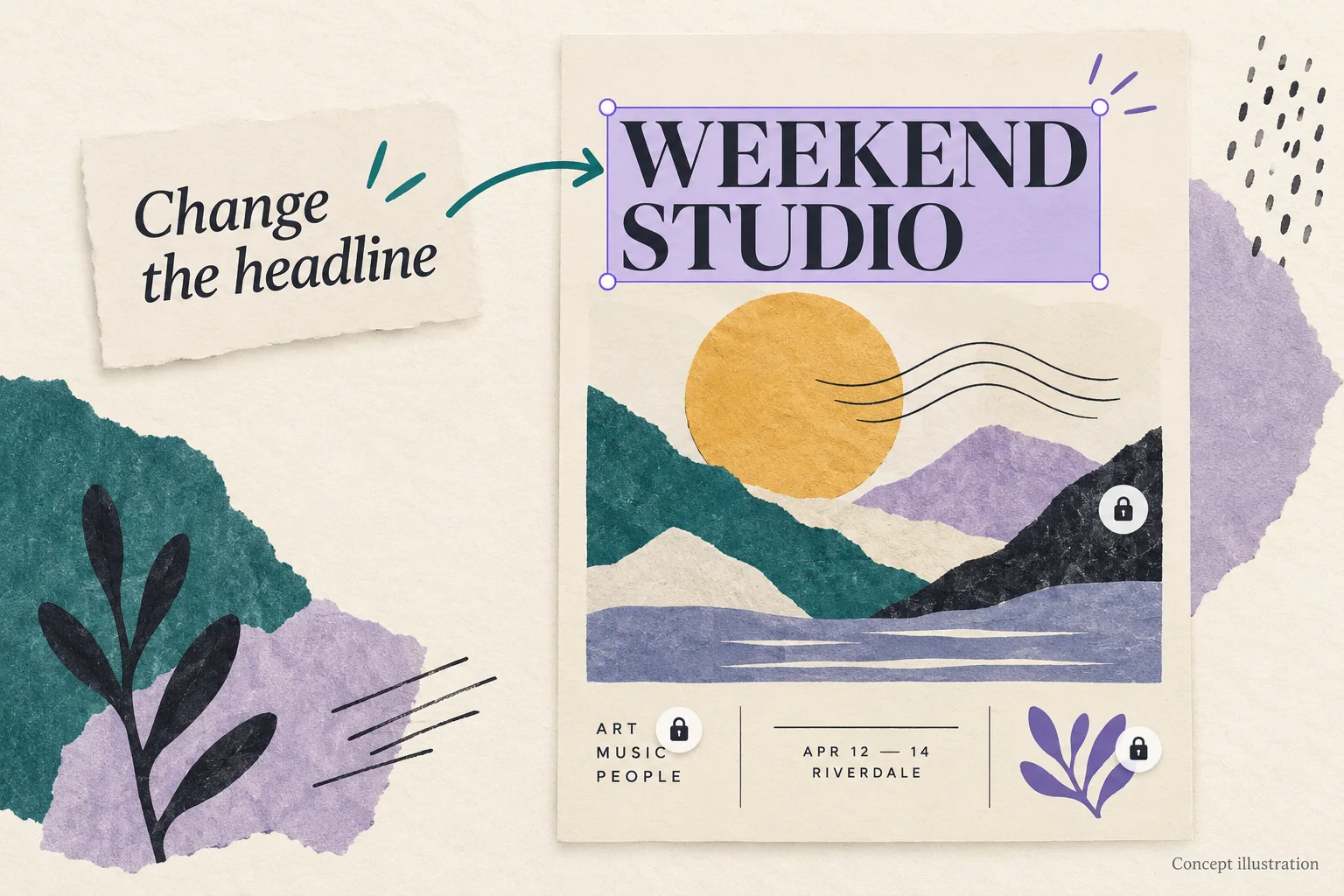
Generated concept illustration, not a Canva screenshot or Brush result. Preservation symbols represent instructions about what should stay, not a guaranteed locking feature.
How to start in Canva AI
Canva's launch guidance says to open an existing design, or attach or link one in Canva AI, then choose Brush from the dropdown. Supported edits launched for Canva Pro subscribers. Check the options available in your own account at Canva AI.
Before trying an edit, keep a copy of the current design or another reference you can compare with the revision. Decide whether you are changing one page or a wider set of pages, then write the request around that scope.
Canvabrush.com's image tools and credits are separate from your Canva account. Use Canva AI for the Brush instructions in this article; buying credits on this site should not be treated as enabling Brush in Canva.
Write an instruction you can verify
Consider a fictional workshop flyer whose illustration and booking details are already approved. Instead of “make this flyer better,” try:
On the first page, replace the headline with “WEEKEND STUDIO”. Keep the existing illustration, date, and booking details unchanged. Leave enough space around the headline so it does not overlap the illustration.
This is an original example to adapt, not a record of a completed Brush test. It identifies the page, gives exact replacement text, and lists what the revision should preserve.
Review the result against those three parts. Read the new headline character by character. Compare the illustration and factual details with the previous version. Finally, look at the page at its intended viewing size rather than only at a large editor zoom.
If the words are correct but the line break is awkward, make the next request about the line break. If unrelated content moved, address that before asking for a new style. Changing one clear issue at a time makes the review easier to follow.
What should you check before relying on it?
Canva's launch announcement lists Brand Kit support, reference attachments, and improvements for image-heavy layouts as ongoing work. Treat that as launch guidance, not proof of the options currently enabled in every account. Confirm the controls you need before planning a workflow around them.
For each revision, keep your own acceptance criteria:
- Copy: names, dates, numbers, and links still match the approved information.
- Composition: text does not collide with the image or disappear into the background.
- Scope: the requested pages changed and unrelated content did not drift.
- Delivery: the exported result is readable at the size your audience will see.
Brush's role is design editing. If the missing piece is a new image, Canva Craft is the related image-generation model; our Brush and Craft workflow guide explains when to use each. For a first Brush session, begin with one existing design and one concrete revision you can inspect.
Prepared by CanvaBrush Editorial. Official product information checked October 30, 2026, against Canva's Brush announcement. Examples are suggested briefs; no account-level test or performance benchmark is claimed.