


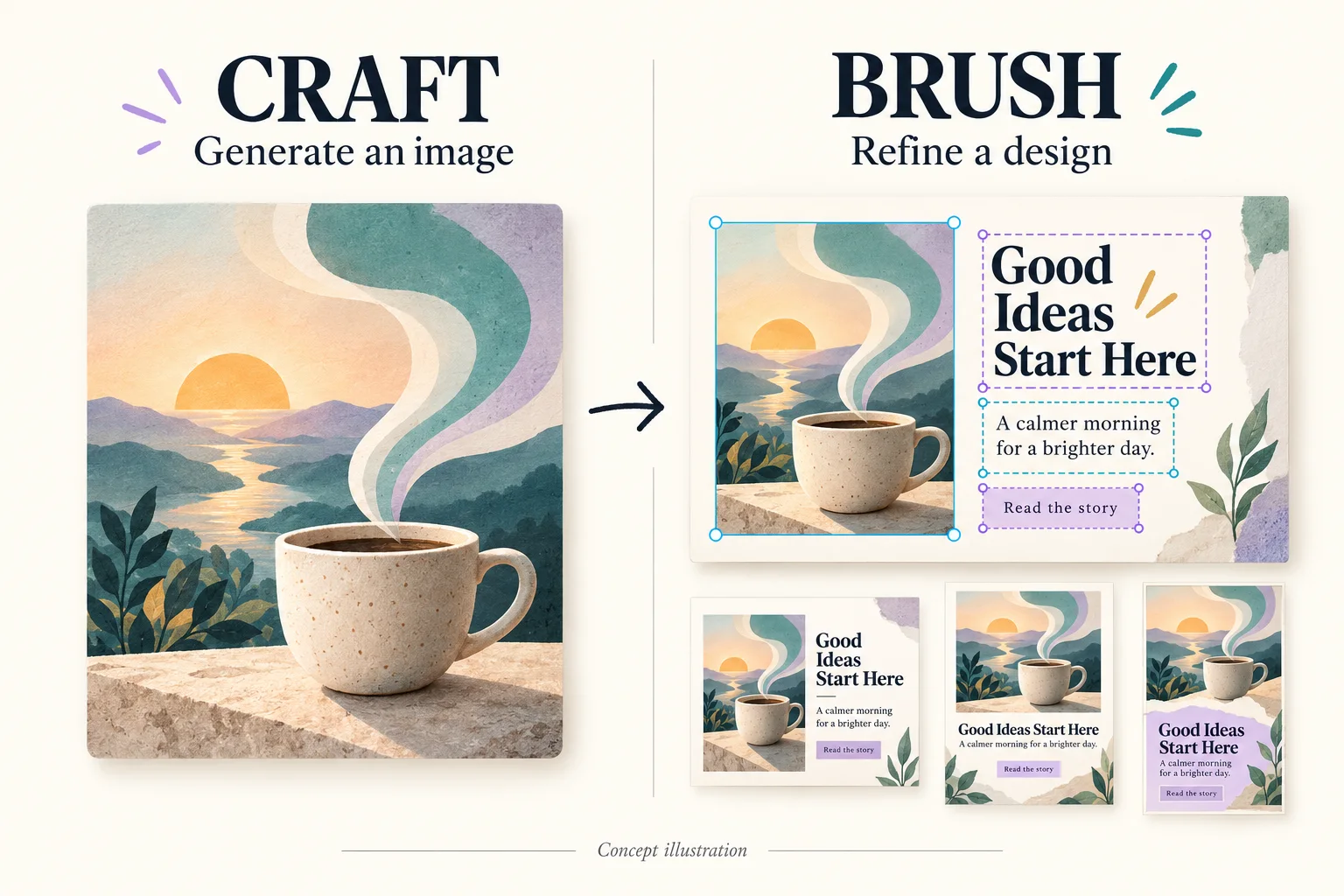
Canva Brush and Canva Craft: How They Work Together
Learn how Canva Brush and Canva Craft are related, when to use each model, and how image generation and design editing fit into one poster workflow.
Read article
 Canva Brush
Tell Canva Brush what to change and what to keep. Update copy, explore a new style, or rework a layout while keeping your design editable.
AI GenerationAI Image Editing Configuration
Configure your model, prompt, and output
Upload up to 10 images for guided editing
Image Preview


 Canva Brush
Find a visual direction for your next campaign. Preview a template, make the prompt your own, and create.
From the blog
Learn how Canva Brush and Canva Craft are related, when to use each model, and how image generation and design editing fit into one poster workflow.
Read article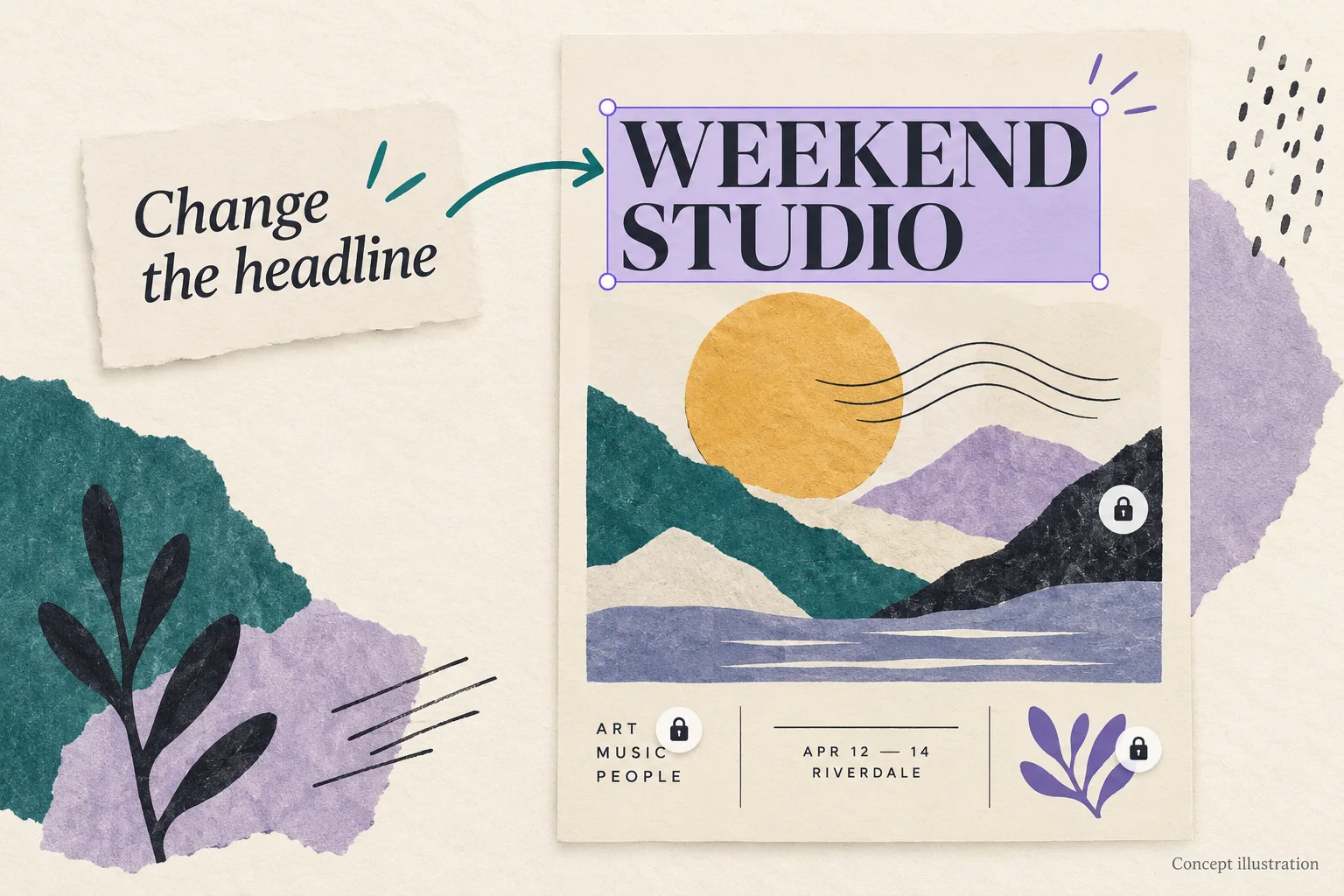
Learn what Canva Brush does, how to start editing in Canva AI, and how to write focused instructions while checking the parts you want to preserve.
Read article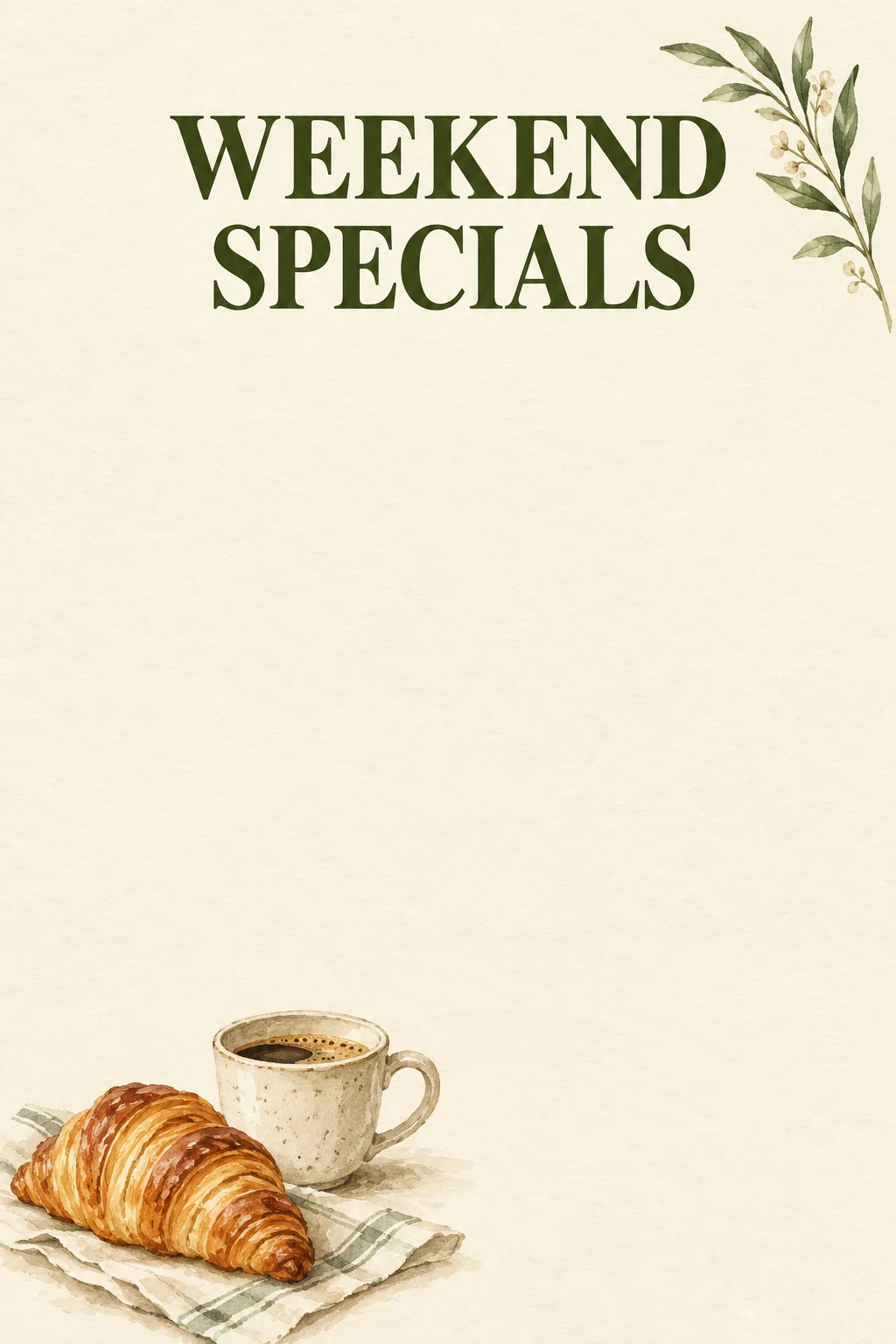
Design a weekend menu with Canva Craft: a copyable prompt, simple layout settings, generated example, editable price workflow, and checks before printing.
Read article
With Canva Brush, start from an existing design and give a clear editing brief. Review the result before moving on to the next change.
Working on a single project, or creating every week? Choose how you pay, see the generation cost, and know how failed tasks are handled.
Buy a one-time credit pack for occasional projects, or choose a subscription for ongoing work. Credit packs do not renew automatically, so you can pay for another pack when you need it.
Compare Plans and Credit PacksThe editor displays the credits required for your selected model and output settings. Check the cost before submitting a prompt or trying another version, so you can decide whether it fits your remaining balance.
Check Generation CostsCredits deducted for a generation task are returned automatically once the task is confirmed as failed. A completed result still uses credits if you decide to generate another version. Contact support if a failed task's refund remains unresolved.
Get Help With a Failed TaskUse Canva Brush for design refinements. Separate image tools help prepare assets; transfer downloaded files between tools when needed.
Describe a specific text or layout change and the elements to preserve. Review the edited design against your brief.
Explore the image toolsExplore a new visual direction or adapt a layout to a different format, then refine the result manually.
Explore the image toolsNeed a larger visual for a product page or layout? Upload your file and choose a 2K, 4K, or 8K target. Export as JPEG, PNG, or WebP and check the enlarged details before use.
Upscale a PhotoNeed a cutout instead of a new scene? Isolate the subject from its background and download a transparent PNG for product listings, presentations, or a new design.
Remove a BackgroundHave a reference but do not know how to describe it? Convert it into a text prompt you can edit for your next generation. It describes visible content; it does not recover the original prompt.
Extract a PromptWant to add motion to a finished composition? Upload it in the video generator and describe what should move. Video models have their own duration, resolution, and credit settings.
Animate a PhotoUnderstand the design workflow, useful prompts, and the limits of the first release.
Canva Brush is a vision-language model for editing designs through natural-language instructions. It works with design elements and their visual relationships.
Supported tasks include changing copy, restyling a design, updating multiple pages, and adapting layouts to another format.
No. Task complexity and service load affect waiting time. Review the completed result before making another request.
Open or link a design in Canva AI, select Brush, and describe your edit. Review the changes and continue with prompts or manual editing.
Name the target element and explicitly describe what to preserve. Check the result; precise instructions do not guarantee every detail stays identical.
State the page, element, requested change, and constraints. For example: replace the heading, keep the photo, and retain the existing colors.
Canva Brush can help adapt designs to different formats. Specify the destination and check that the new layout keeps essential content readable.
Brush edits designs; the Craft image model's resolution specifications do not describe Brush. Check the export options for the design you are using.
At launch, supported Brush edits in Canva AI require Canva Pro. Plans and credits on canvabrush.com are separate from a Canva subscription.
Describe the heading change and the pages it should cover. Check every affected slide for consistency and unexpected text wrapping.
In the Canva design workflow, text, imagery, colors, and layout elements remain editable, so you can continue refining them by hand.
Check the applicable terms and the rights to every included asset. Editing a design does not grant rights to someone else's photos, logos, or text.
The launch announcement lists Brand Kit support and reference attachments as work in progress. Do not assume they are available in every editing task.
No. Canva Brush is a design-editing model. Drawing brushes and the region-selection brush in Magic Edit serve different purposes.
Craft generates images; Canva Brush refines designs. Choose based on whether you need a new visual or changes to an existing composition.
Choose the perfect plan for your creative needs.
Explore the image tools
Great for exploring!
For serious creators who need professional features
✓ Cancel anytime — no questions asked
For studios and teams creating at scale
✓ Cancel anytime — no questions asked
With a reference video, credits are charged on output duration plus the total reference-video duration.
With Canva Brush, choose one change, explain what should stay, and review the result. Build a clearer design through focused revisions.
Have feedback, questions, or suggestions about Canva Brush? We would love to hear from you.